10 New Updates: Comments Are Here, AI That Runs Your Library, and a Whole New Look!
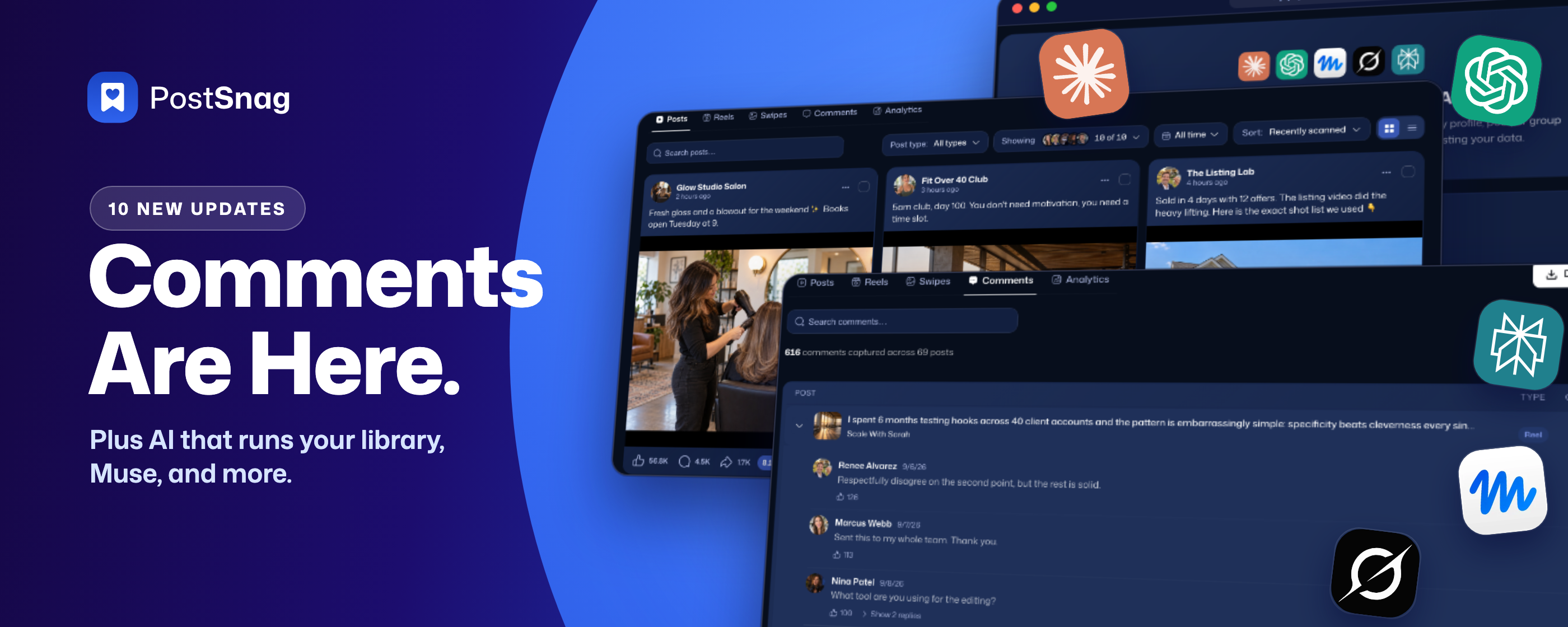
We got 10 updates coming your way, and the first one is the one you have been asking for the most. Last time we gave you Swipe, Folders, and PostSnag inside Grok and Perplexity. Since then we went heads down on the conversation under every post, a faster extension, and a dashboard that looks and works the same everywhere you go.
This update has 10, and the first one is brand new:
💬 Comments (capture and download the comments on any post, profile, or group)
🔖 Bookmarks in the extension (see what you saved without leaving Facebook)
⚡ Faster capture (20 to 30 posts per scroll instead of about 5)
👥 Profiles (new cards, and top and outlier profiles one click away)
🪪 Profile makeover (posts that look like Facebook, and a Comments tab)
📰 Posts (the same new cards and tabs across your whole library)
🏘 Groups (a cleaner page and a big Download Group Data button)
🤖 The MCP (Muse, 28 tools, and comments inside your AI)
📁 Folders (one layout, every tab, smarter with the MCP)
Before we get into it, make sure you are on the latest Chrome extension. Close out and reopen your browser and it updates itself.
Let's get into it 👇
1. Comments
Brand new, and the one you asked for the most. You can now export the comments on any Facebook post, on a profile or inside a Facebook group. Open the post, scroll, and watch the comments download.
Open the post and scroll. Go to the post itself and scroll down, and the sidebar jumps to a new Comments tab and counts them as they come in: who wrote it, what they said, when, how many likes, and the replies nested under the comment they answer.
Switch to All comments first. Facebook opens most threads on Most relevant, which hides comments it thinks are spam. Switch the thread to All comments before you scroll so you grab everything Facebook will show you. Each row shows how many you captured out of Facebook's total, like 142/177.
Export one post, or all of them. Hit the arrow on a row to export that one post's comments, or hit Export Comments at the top to send everything you captured in bulk. Your dashboard opens right on the Comments tab.
Or start from a link. Paste any post link into a tab, a profile post, a Page post, or a group post, and PostSnag captures the post and its comments without scanning the whole profile first.
A new Comments tab in your dashboard. Every post you exported comments from is listed with its thumbnail, author, type, and how many you captured. Click the dropdown to read the whole thread, replies included.
Download for AI. Download the comments of one post, or all of them at once, as a Markdown file and a CSV ready for Claude or ChatGPT. Every CSV row repeats the post's author, caption, and link, so each row still makes sense on its own.
Works in Facebook groups too. Group posts, and the profiles of members inside a group, capture comments the same way, and every group has its own Comments tab.
Search and bookmark. Search inside the comments themselves, and bookmark any single comment to find it later under Bookmarks, then Comments.
Instantly available in the MCP. Ask Claude, ChatGPT, Muse, Perplexity, or Grok to pull a post's comments, list comments across your library, or pull whole comment threads with every reply.
2. Bookmarks in the extension
See what you already saved without leaving Facebook.
Your saved posts, right in the sidebar. On any profile, a new Bookmarks tab lists the posts from that profile you bookmarked or saved to a folder in your dashboard. It is a quick double check of what you already have.
One click to the post. Click any saved post in the list and it takes you straight to it on Facebook. You can remove a bookmark from the sidebar too.
3. Faster capture
The not glamorous update, but the one you will notice the second you scroll.
20 to 30 posts per scroll. PostSnag used to pick up about 5 posts each time you scrolled. Now it picks up 20 to 30. In the video, two scrolls pulled in 36 posts.
Why it is faster. Facebook quietly loads the next batch of posts before they reach your screen. PostSnag now reads that whole batch as it loads, instead of waiting for each post to scroll into view.
Less scrolling for everything. Profiles, Pages, and Facebook groups all fill up faster, so you get to export sooner.
4. Profiles
The Profiles page got cards that tell you more at a glance, and a simpler menu.
New profile cards. Each card shows the creator's cover, their profile photo, and their posts, groups, and folders counts.
See which groups they are in. If a creator is inside any Facebook group you scanned, the group shows on their card. Click it and it takes you to that person inside that group on Facebook, where their group posts are.
Top, Outlier, and Analytics in one menu. Tabs across the top take you to your top profiles, your outlier profiles, and analytics across every profile you have scanned, so it is faster to see who you should be paying attention to.
Filter by group. A Group filter shows only the creators from the groups you pick.
5. Profile makeover
Open any profile and everything got a makeover, from the header down to the posts.
A cleaner header. Simpler and easier to read, with the stats as tiles and In Folders, View on Facebook, and the three-dot menu together at the top right.
One set of tabs everywhere. Posts, Reels, Swipes, Comments, and Analytics, in the same order you will find across the whole platform.
A big Download Profile Data button. Download the data, the media, or both together, ready for AI.
Posts that look like Facebook. The small four-column grid is gone. Posts now show in three wide columns and look exactly like they do on Facebook: the byline, the text with See more, the full image, and the like, comment, and share counts.
Colored-background posts. Text-only posts written on a colored or gradient background now show that background, just like on Facebook.
A Comments tab on every profile. See how many comments you captured across that creator's posts, open any post to read the full thread with replies, and export them for AI. Then ask your AI things like "What's working in Austin's content, and how are people reacting in the comments?"
6. Posts
The Posts page, your whole library in one place, got the same refresh.
The new three-column cards. The same Facebook-style cards as profiles, across every post you have captured.
New tabs. Reels, Swipes, Comments, and Analytics now sit next to Posts, so you can flip between every reel, every image, and every comment you have captured.
Pick who you see. The Showing menu lets you select and deselect creators, so you can look at a handful at a time or everyone at once.
7. Groups
Groups got an overhaul so they match everything else.
A cleaner Groups page. Easier to read and easier to navigate, with a Profiles by group tab that shows every member of each group you scanned.
The same layout inside every group. A new header, then Posts, Profiles, Reels, Swipes, Comments, and Analytics tabs.
Comments in groups. Every group has its own Comments tab for the group posts you captured comments from.
A big Download Group Data button. Download your group's data, media, or both, fast and easy.
8. The MCP
We massively updated the MCP, and Muse joins the list.
Muse is here. Muse is Meta's AI agent, and it joins Claude, ChatGPT, Grok, and Perplexity. The MCP page walks you through connecting it in three steps, with its own setup video.
28 tools, up from 12. 16 for reading your data, 9 for writing (your AI can now organize your library for you, see below), and 3 for exporting.
Ask your AI about the comments. Capture the comments on any post, profile, or group, then ask your AI what you want to know. "Look at this post, what's the common sentiment?" "Look at this Facebook group, what are people frustrated by?"
Put it on a schedule. Use it with Muse, Claude, or ChatGPT to run on a schedule. "Every Friday, look at the comments on my posts from this week and tell me what people liked and didn't like."
9. Folders
Folders got a simpler makeover and a smarter connection to the MCP.
A header with the quick info. Posts, profiles, groups, swipes, likes, comments, and shares for the whole folder, at the top.
Every tab in one place. Posts, Profiles, Groups, Reels, Swipes, Comments, and Analytics, so you see everything you saved to that folder, including the comments you captured.
The same layout as everywhere else. Profiles, groups, folders, and Bookmarks now share one layout, so once you know one, you know them all.
Smarter with the MCP. Your AI can now create folders, file posts, profiles, groups, and images into them, and export a whole folder for you (see below).
Everything else in this update
The rest of what landed, grouped up. None of these needed their own video, but you will run into all of them.
Your AI can organize your library
Create and file by asking. Your AI can create a folder, rename it, recolor it, pin it, and add or remove posts, profiles, groups, and single images. Try "Take these creators' top reels and put them in a folder called Reel Winners."
Bookmark by asking. Posts, profiles, groups, comments, and single slides inside an album.
Delete, with a safety net. Your AI can delete folders or library items. Deleting a folder keeps what was inside it. Nothing on Facebook is touched, and your AI is told to list what will go and check with you first.
Undo. Ask your AI to undo its last change and it reverses it, one step at a time, for up to 30 days.
Export a folder from the chat. Say "download this whole folder" and your AI starts the export and hands you the link when it is ready.
Sharper answers. Searching inside one creator no longer mixes in other creators' posts, a creator inside a group returns only their posts in that group, and top posts no longer under-count a creator.
Writing tools need Pro or Lifetime, like the rest of the MCP.
In the extension
Clearer words. Collected is now Posts, Synced is now Saved (amber while it captures, green when done), and Export To Dashboard is now Export Posts.
Fresh every visit. The sidebar and Export use only what you captured on this visit, so things you deleted in your dashboard don't come back.
In the dashboard
Custom date range. Pick Last 7, 30, or 90 days, All time, or your own dates on Posts, every group, and every folder.
A rebuilt post popup. Every post opens in the same size box with the whole image, and Caption and Comments tabs. Copy or download the caption in one click.
Card or table on every feed, and one multi-select bar with the same actions everywhere.
Swipes, a step further. A Swipes tab on Posts and Bookmarks, a table view, Filed here and Found inside chips in folders, and Swipes counts on folders and Bookmarks.
Delete a folder. Hover a folder card and confirm. Your posts, profiles, and groups are kept.
Bookmarks looks like a folder, with the same seven tabs.
Faster and safer folders. The Folders page loads its counts much faster, and adding a selection to a folder no longer removes posts from folders you didn't touch.
A What's new card in the bottom left of your dashboard, so you never miss an update.
Smaller fixes. Downloading a post's media works, chart colors are easier to tell apart, MCP has its own link in the phone menu, and a folder no longer flashes empty while it loads.
This is just the start
Everything above landed in the three weeks since the last update. Update the PostSnag Chrome Extension, open any post on Facebook, switch it to All comments, scroll, and hit Export Comments. Then ask your AI what people are really saying. Tell us what to build next on the roadmap. We are listening.